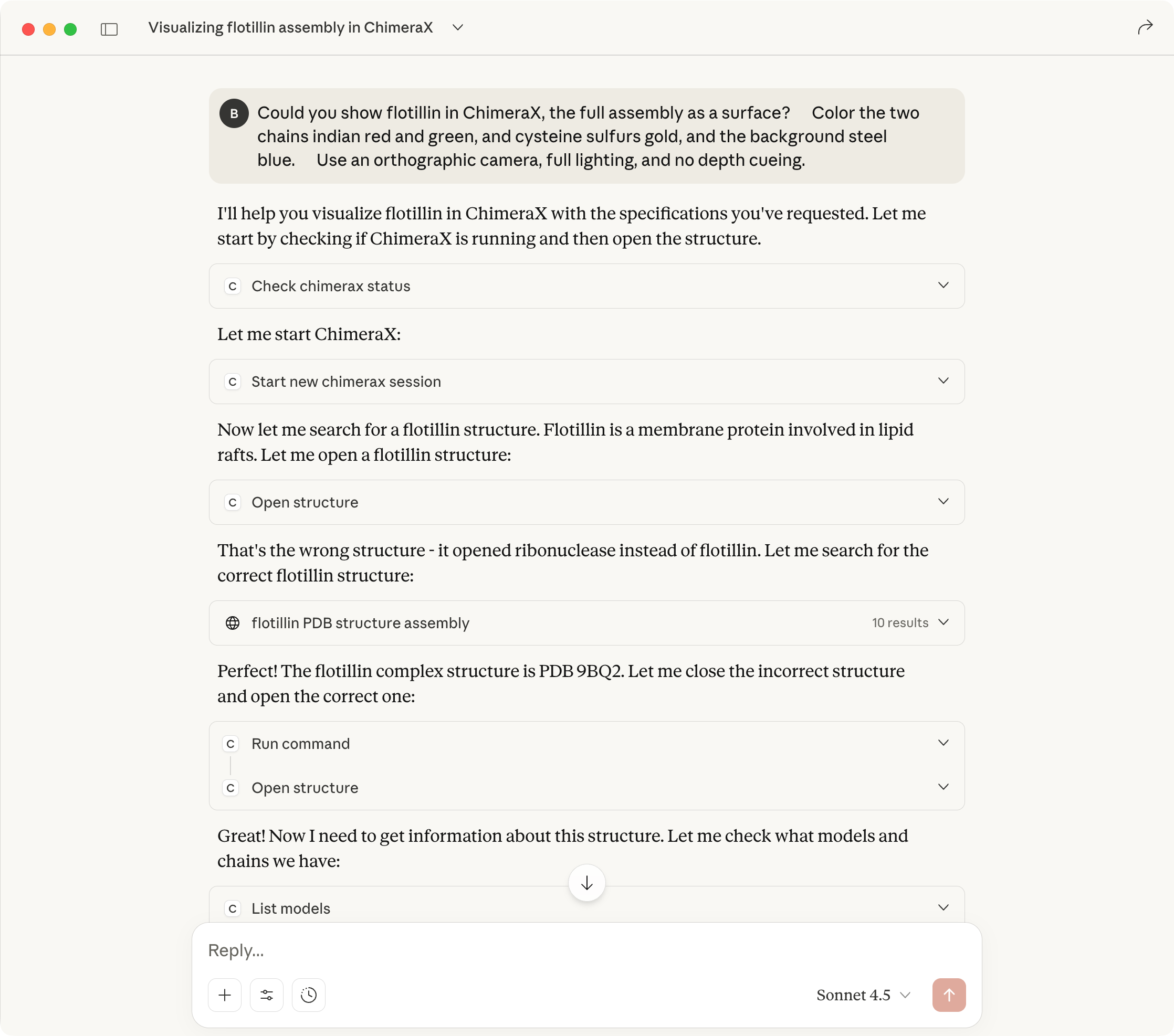
Claude Desktop App on Mac
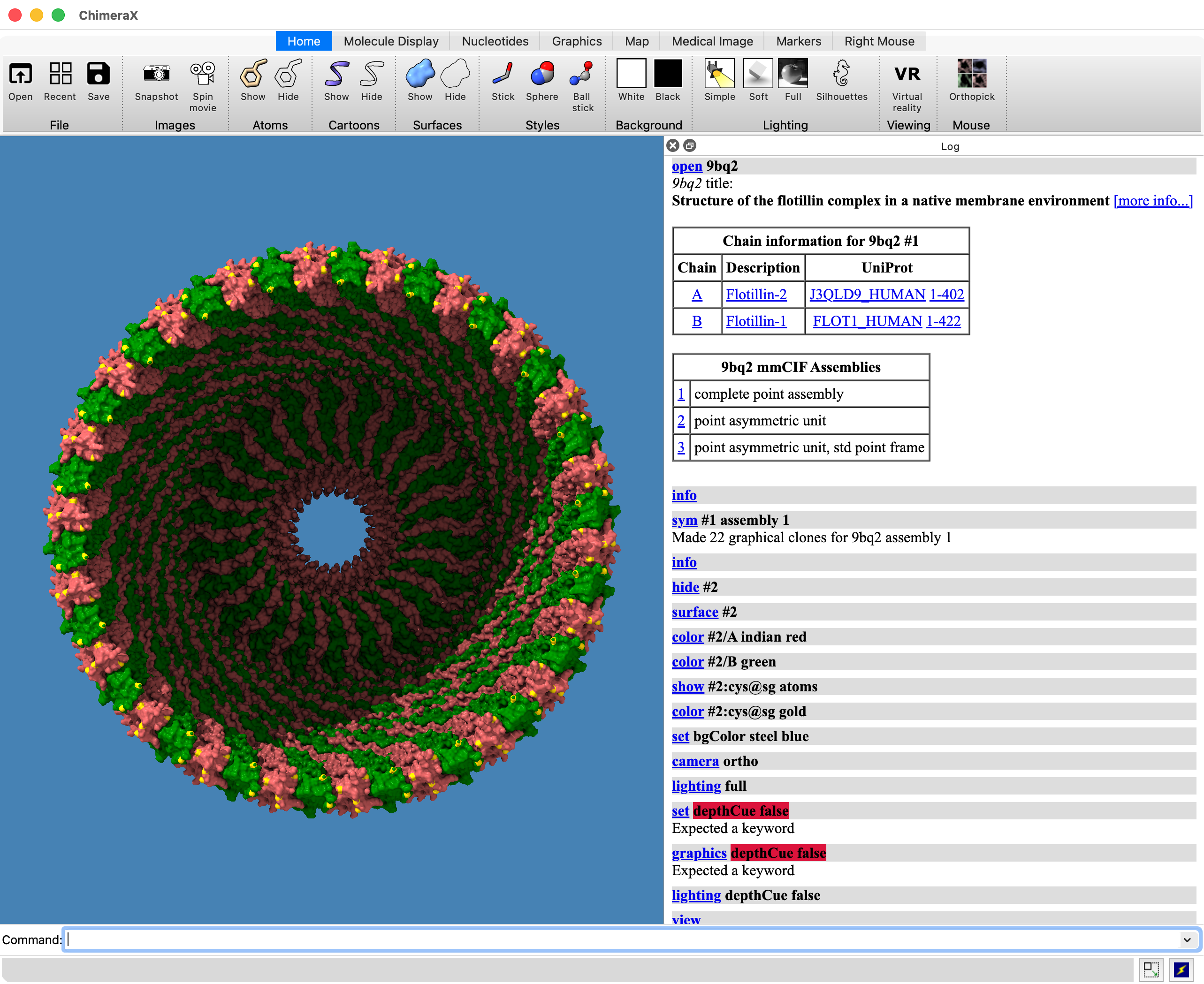
ChimeraX 1.11 release candidate
Tom Goddard
December 4, 2025
ChimeraX can be controlled by typed text requests ("prompts") to Claude AI chatbot. It translates the requests into ChimeraX commands and runs them.
This capability was implemented and demonstrated by Alexis Rohou at Genentech, then incorporated into ChimeraX by Zach Pearson as the ChimeraX mcp command. MCP stands for Model Context Protocol and is the specification that allows AI Agents to control software applications developed by Anthropic (the company behind Claude) in November 2024.
An alternative ChimeraX Help chat assistant can advise how to do tasks but not directly run them. It may give higher quality results than Claude using ChimeraX documentation and tutorials and Google NotebookLM.
The Claude Desktop app is available for Mac and Windows. There is no official version for Linux. You type questions in the app which can then send commands to ChimeraX. The free Claude account allows about 20 minutes of interaction every 5 hours, while a Claude Pro account costing $20/month alows about 5 times the usage, so about 2 hours every 5 hours.
Here is an example of Claude Desktop creating a molecular holiday card using ChimeraX where I asked
      Could you show flotillin in ChimeraX, the full assembly as a surface?
      Color the two chains indian red and green, and cysteine sulfurs gold, and the background steel blue.
      Use an orthographic camera, full lighting, and no depth cueing.
Claude started ChimeraX and issued about 20 ChimeraX commands and described the steps it took in about 5 minutes with no intervention.
|
Claude Desktop App on Mac |
ChimeraX 1.11 release candidate |
Best for new ChimeraX users. Claude spends lots of time thinking and an experience ChimeraX user can get faster results by directly controlling ChimeraX.
Learn ChimeraX from the Log. You can see how Claude did things by looking at the ChimeraX Log, helping you learn ChimeraX.
Be specific. Claude control of ChimeraX performs best if given specific requests not general requests.
Revise mistakes. Claude will often make mistakes and will try to correct them. Explain to it mistakes it made and it will try to fix them.
Memory. In a new conversation Claude does not appear to remember the mistakes it made in earlier conversations. It will repeat the same mistakes. This is a limitation.
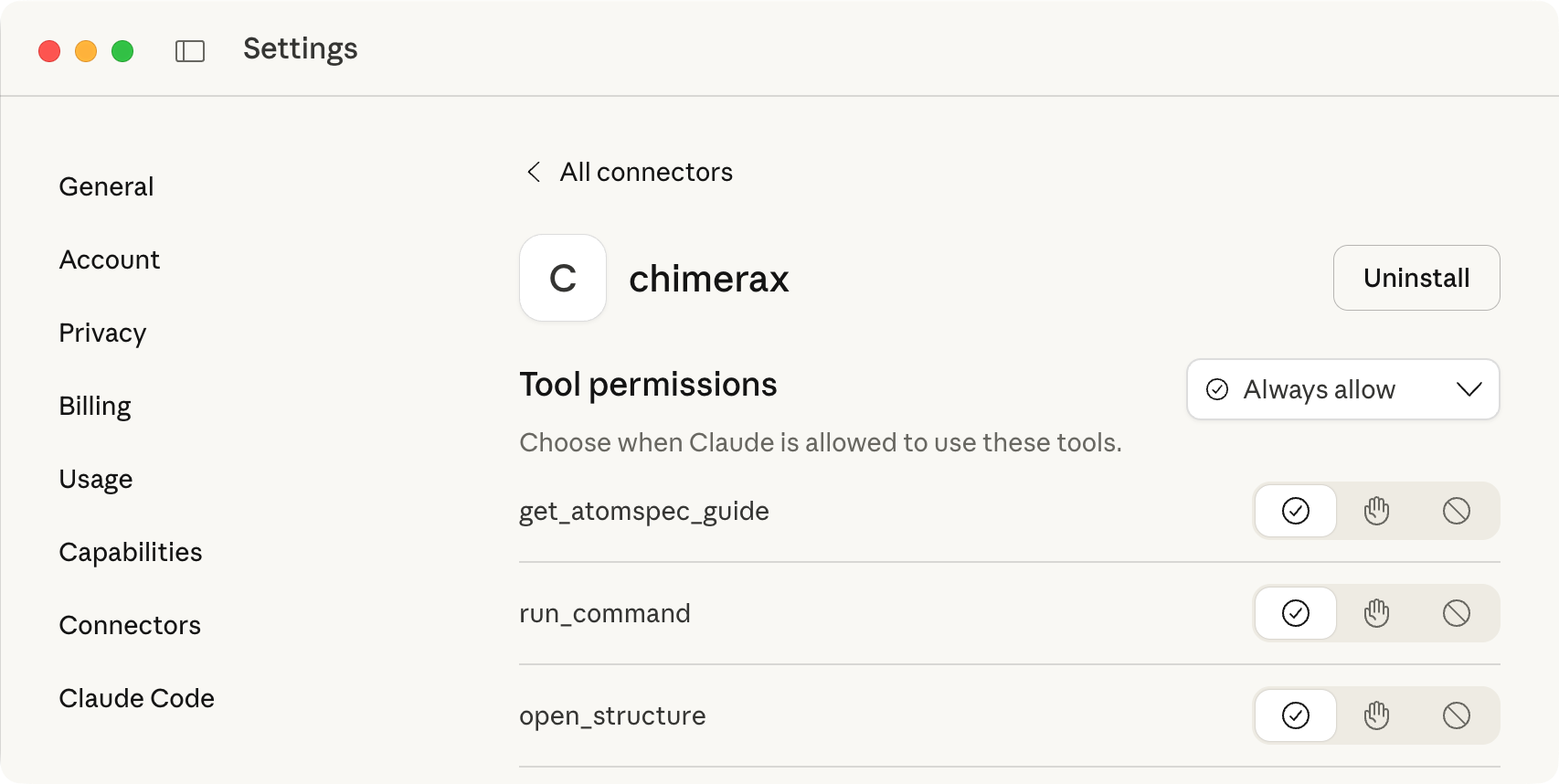
ChimeraX provides 14 functions that Claude can use, the most general being "run_command". Claude refers to these functions as Tools and will ask for permission to use each Tool. You can press the "Always Allow" button so it does not ask again. The 14 functions are safe ChimeraX operations. To avoid having to separately allow each function you can use Claude Settings (on Mac in the top-of-screen menu), choosing Connectors, clicking Configure next to chimerax, and choosing "Tool permissions: Always allow". Then you won't be asked for permission to use all 14 functions during a Claude chat that uses ChimeraX.
The ChimeraX mcp command enables ChimeraX to listen for commands from Claude using the Model Context Protocol. If Claude Desktop has started ChimeraX then it tells ChimeraX to listen for commands so this command is not needed.
mcp start [port] - Start the ChimeraX REST server for MCP bridge connections (default port 8080).
On Mac the Claude Desktop configuration file is at ~/Library/Application Support/Claude/claude_desktop_config.json.
On Windows the configuration file is at ~/AppData/Roaming/Claude/claude_desktop_config.json.
I have not tried any of these.