Tom Goddard
December 15, 2025
ChimeraX can run Boltz predictions on a server that you set up. For example, ChimeraX prediction jobs can be sent from a Mac or Windows laptop to a Linux computer with Nvidia graphics to make faster predictions of larger molecules.
To setup a server (can be Linux, Windows, or Mac) you install ChimeraX (December 16, 2025 version or newer) on the server computer, then run the following ChimeraX commands to install boltz and start the server process. The setup commands can be run without a graphical display (for example, if the server has no display) by starting ChimeraX in text only mode.
      chimerax --nogui
      > boltz install
      > boltz server start
      > exit
When you quit ChimeraX the server remains running. The server listens for prediction requests from ChimeraX from other computers, runs the predictions, and returns the results. By default the server keeps temporary job files in directory ~/boltz_server_jobs. Multiple predictions can be queued but only one runs at a time, unless multiple GPUs are available and the gpus option is used when starting the server. The Boltz server can be setup on cloud virtual machines from commercial providers.
|
|
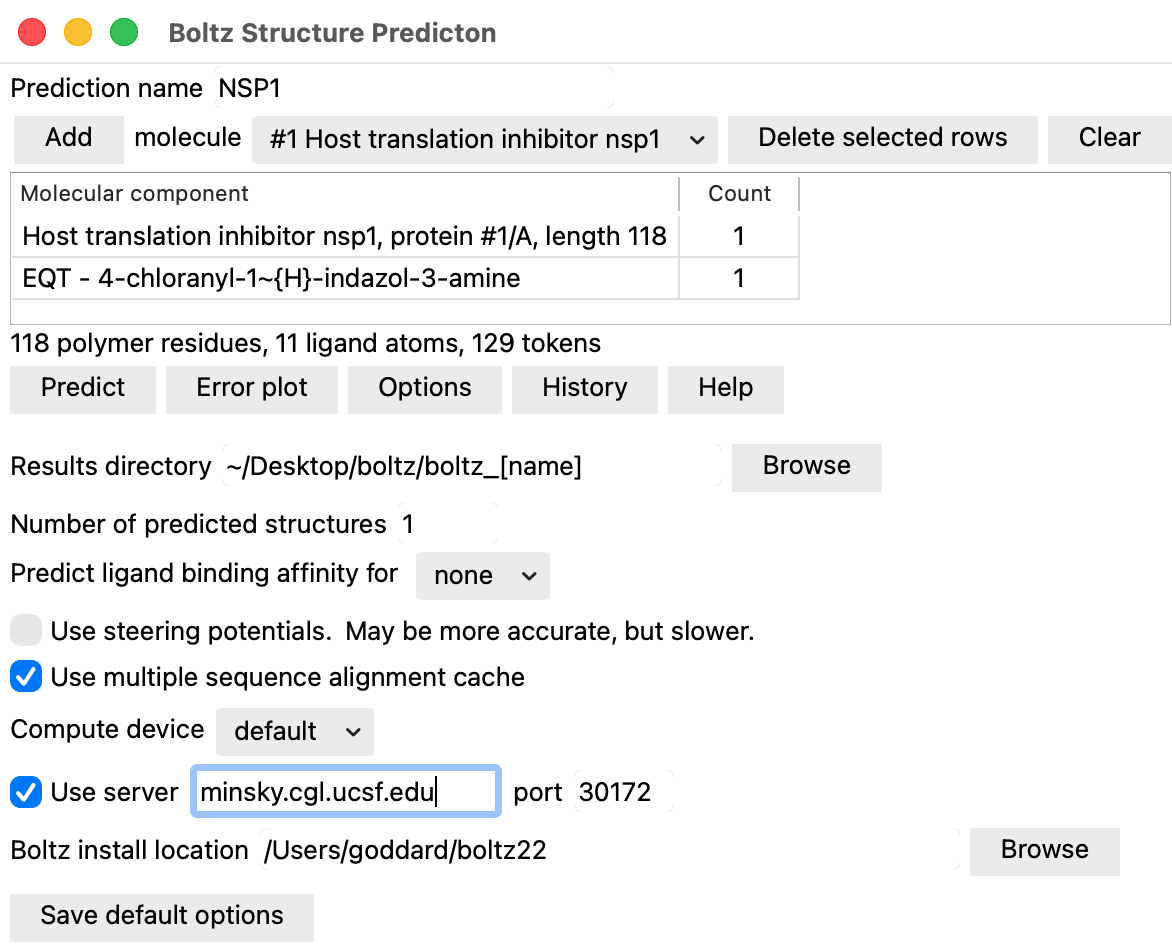
Boltz predictions are run from ChimeraX in the usual way, only the server host name is specified. Use ChimeraX menu Tools / Structure Prediction / Boltz to specify the molecules to prediction. Press the Options button on the Boltz panel, check "User server" and provide the host name of the server. The press the Boltz Predict button to run the prediction. To always use the server click the "Save default options" button.
The predicted structure will automatically be opened when the calculation finishes. You can quit ChimeraX and later restart it and fetch new predictions from the server using ChimeraX menu Tools / Structure Prediction / Boltz History. If there are active server predictions the Boltz History panel will have a button "Fetch from server" that will get any completed predictions. Note locally run predictions behave differently and are terminated if you quit ChimeraX.
To use the prediction server ChimeraX copies the folder with the Boltz input (.yaml file, msas, command options) to the server machine, Boltz runs on the server, and the results are copied back to the machine that made the request. All Boltz input and output will be in a folder the same as if the prediction were run on the local machine. The default location for Boltz job folders is on the user Desktop, but this can be changed using the "Results directory" entry under Options in the ChimeraX Boltz user interface.
The command to start the boltz server has the following options.
      boltz server start [host hostname] [port port-number] [boltzExe executable-path]
                         [jobsDirectory directory] [device gpu | cpu] [gpus gpu-ids] [extraOptions boltz-options]
Options descriptions
A server log text file named "boltz_server_log" is created in the jobsDirectory when the server is started and can be used to debug server errors.
If you quit ChimeraX and later restart it it remembers server jobs you were running that were not completed. The Boltz History panel (menu Tools / Structure Prediction) will have a button Fetch from server that can download and display completed server jobs.
Alternatively you can list these "active" jobs with the "boltz server list" command and fetch the resulting predictions with the "boltz server fetch" command. When results are fetched the structures will be opened in ChimeraX. If pending jobs are not complete the fetch command will report the current state (running, waiting to run).
      boltz server list
         - Lists active server job identifier and server host and port.
      boltz server fetch [local-directory] [open true | false]
         - fetch server predictions
Options descriptions
There is currently no command to stop the Boltz server process. On Linux or Mac you can determine the process id and kill the process using shell commands.
      $ ps -axww | grep boltz
        34435 ChimeraX.app/bin/python3.11 ChimeraX.app/lib/python3.11/site-packages/chimerax/boltz/server.py ...
      $ kill 34435
On Windows use Task Manager to find the boltz server process and force quit it. On Mac you can also use Activity Monitor to find the boltz server process and force quit it.